Infrastructure Lab
How To Install TrueNAS & Setup iSCSI Share
Building a resilient storage backend for your virtualization cluster using TrueNAS Core.
01
1. Installation Phase
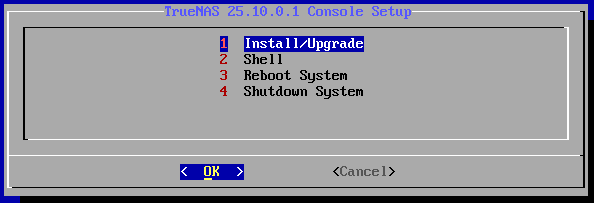
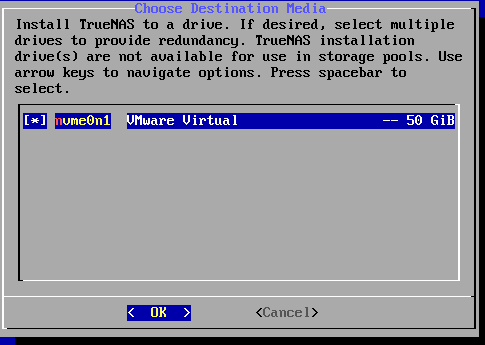
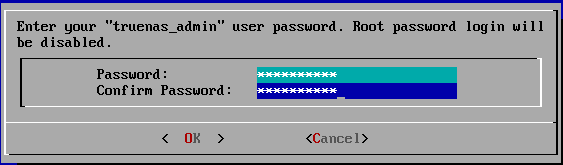
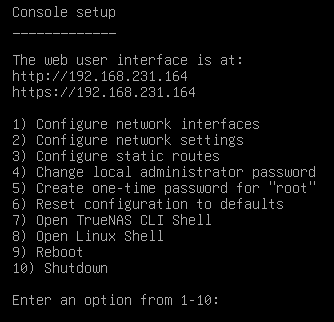
Boot your server from the TrueNAS USB installer. Follow the on-screen wizard:
- Select 1. Install/Upgrade.
- Target the correct drive (Space to select, Enter to confirm).
- Warning: Confirm data erasure on the selected drive.
- Set a strong root password for the truenas_admin user.
02
2. Create Storage Pool
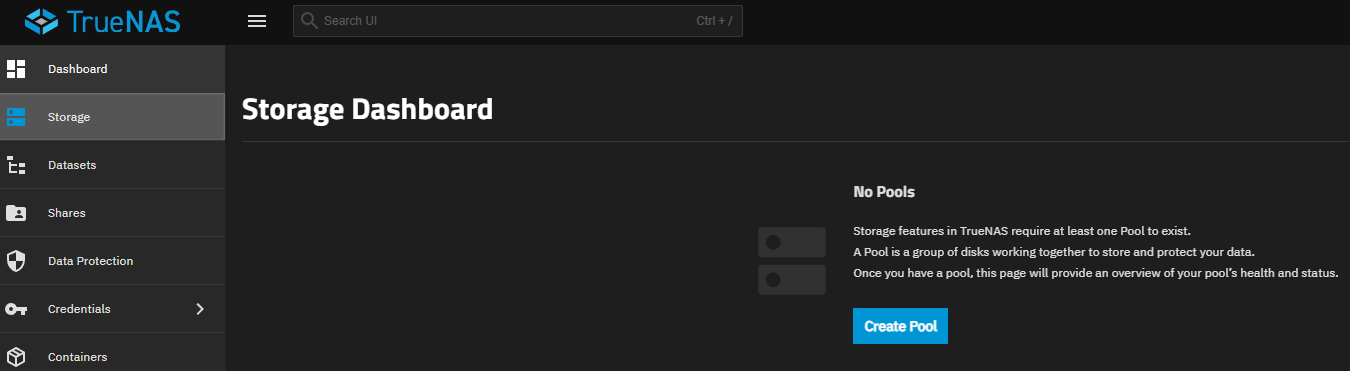
Access the Web GUI via the IP address shown after reboot. Navigate to Storage > Pools > Add.
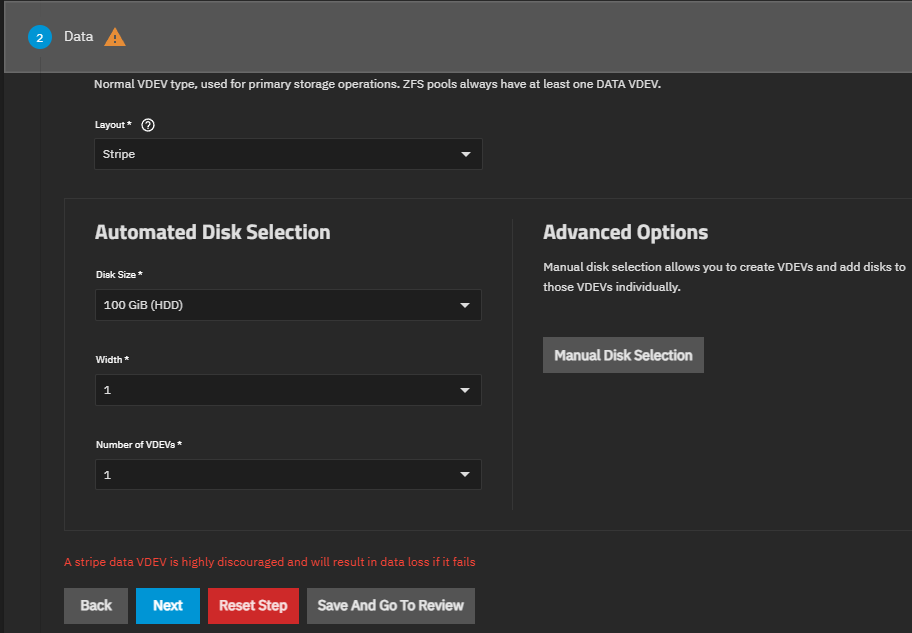
Configuration:
- Name: LAB-01-Storage
- Layout: Stripe (For single disk lab environment)
03
3. Enable iSCSI (Block Share)
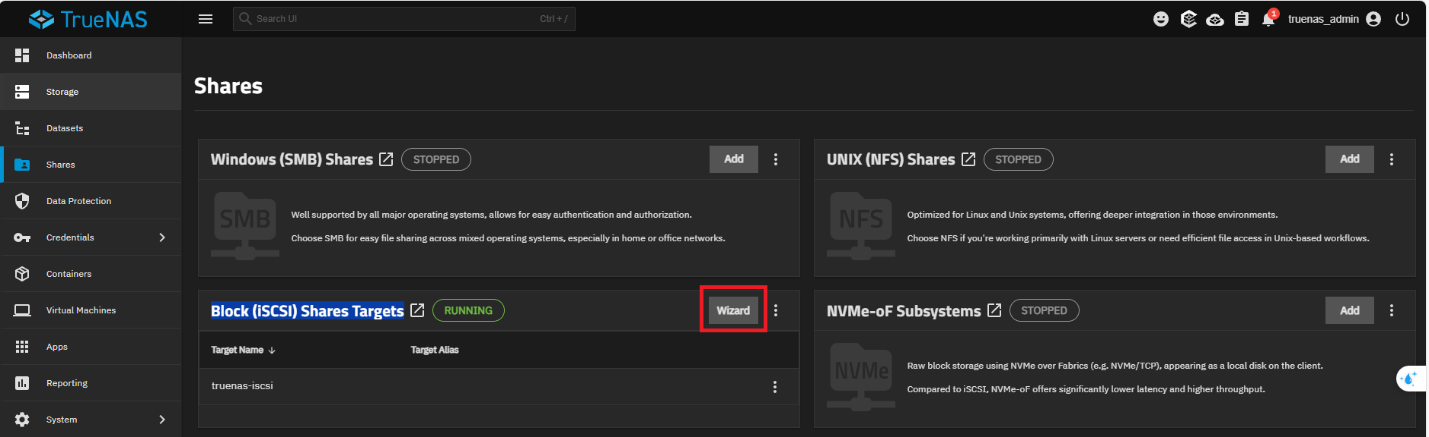
Go to Sharing > Block Shares (iSCSI) and use the Wizard for quick setup.
Target Settings
- Name: truenas-iscsi
- Type: Device
- Size: 75 GiB (Does not exceed 80% of available storage space)
Portal Settings
- Listen: 0.0.0.0 (All Interfaces)
- Discovery Auth: None (For Lab)
Ready to deploy?
Download the official TrueNAS ISO and start building your storage.
05
Get In Touch
Complex infrastructure challenges deserve elegant solutions. Let's realize it together.
gynlam328@gmail.com
Phone
+84-83314-1685
Location
Ban Co Ward - Previously known as District 3, HCMC